English speaking practice with Gemini Live: prompts to say aloud and what to check
By the SpeakWisely team · Published · 7 min read

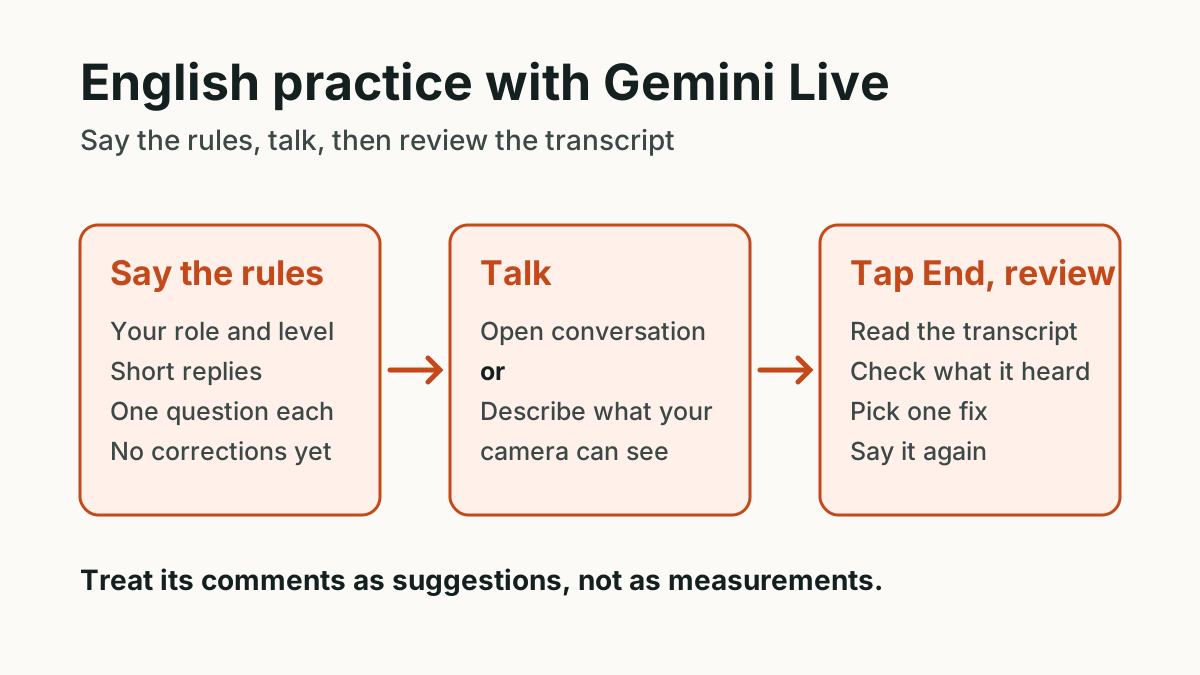
To practise English with Gemini, open Gemini Live in the mobile app, say your practice rules aloud, talk for a few minutes, then tap End and review the transcript. Live suits open conversation, and you can interrupt it or show it what your camera sees. Google's Live help page suggests using it to rehearse important moments aloud, but it does not mention language learning, pronunciation or scoring, so treat its comments on your English as suggestions to check, not as measurements.
This guide covers what you need, prompts to say aloud, exercises that make use of the camera and screen, and how to review a session. The prompts were written by the SpeakWisely team, and replies will vary. For the bigger picture on AI feedback, read how to learn to speak English with AI.
What do you need to use Gemini Live for English practice?
Google's help pages, checked in November 2026, list these requirements. Availability can change, so confirm on the official pages if something looks different on your phone.
- A phone or tablet app. Live runs in the Gemini mobile app on Android and on iPhone or iPad. Google says it is not available in the Gemini web app.
- An Android device that qualifies. Google lists 2 GB of RAM or more and Android 9 or later, and says Android Go devices are not supported.
- A signed-in account and the minimum age. You must be over 13, or the applicable age in your country.
- A supported country and language. Google lists India as available, and lists languages including English, Hindi, Gujarati, Tamil, Telugu, Bengali and Marathi.
To start, open the app and tap Live at the bottom of the screen, or swipe left. Google's Live help page does not name a paid plan as a requirement, and the app is listed as free with in-app purchases. Google also says some features need setup or a subscription, and that limits for people without a plan may be reduced first when demand is high. Its usage limits page does not give a separate limit for Live, so we cannot give you a number of minutes.
What should you say to Gemini Live to practise English?
Google says Gems cannot be used with Live, so you cannot rely on a saved Gem to hold your practice rules. Simply say them at the start. Saying the setup in English is a small speaking exercise in itself. Keep each prompt short and change the details in square brackets.
- Conversation
- Please be my English conversation partner. My level is [intermediate]. Talk with me about [my college]. Keep your replies short and ask me one question each time. Do not correct me until I say "review time".
- Slow down
- Please speak a little more slowly and use simple words. If I stop for a few seconds, wait for me. Do not finish my sentence.
- Interview
- Be a friendly interviewer for a [sales] job. Ask one question at a time, and ask a follow-up about something I said. Save your feedback for when I say "review time".
- Stuck in Hindi
- If I get stuck, I will say the idea in Hindi. Tell me a simple way to say it in English, wait for me to repeat it, and then continue in English.
- Review time
- Review time. Give me up to three corrections from this conversation. Tell me what you heard me say, a natural version, and the reason in one line. Say so if you may have misheard me.
The Hindi prompt works because Google says Gemini can handle any supported language when you speak in Live, whatever your language setting is. A 2024 Google post said Live would support conversations in up to two languages on the same device. That post is old, so test it in your own app. Use your first language only as a rescue. If every difficult sentence goes through Hindi, you will get less practice at thinking in English.
How can the camera and screen help you practise speaking?
Google says you can turn on your camera to show Gemini what you see and talk about it, or share your screen. This gives you something to talk about when your mind goes blank. Sharing your screen shares your full screen, so close anything private first. Google also notes that the camera turns off when Live is put on hold, and that screen sharing stops when Live is on hold or your screen locks.
- Describe
- I will show you my desk. I want to describe it in five sentences. After that, ask me two questions about what you can see.
- Tell a story
- Here is a photo from my trip. Ask me where I was and what happened. Make me use the past tense, and ask for more detail.
- Job advert
- I am sharing a job advert on my screen. Ask me three interview questions based on it, one at a time. Do not answer them for me.
Interrupting is worth practising too. Google says you can interrupt Gemini while it is replying. Real meetings need this skill, and many learners avoid it. Try "Sorry to interrupt, could I add something?" or "Can I stop you there for a moment?"
How do you review a Gemini Live session?
Tap End, or swipe right, to leave the Live chat and review the transcript. Muting keeps the session open, whereas ending it gives you the transcript. Read that transcript slowly before you accept any correction.
- Compare it with your memory. If a sentence is not what you said, ignore any correction based on it.
- Pick one repeated slip. One pattern, such as missing articles or the wrong past tense, is enough for a day.
- Say the better version aloud three times. Reading a correction is not the same as saying it.
- Resume, or start again. Google's help page says you can resume a previous Live chat from the app, so you can answer the same question again using the fix.
What can Gemini Live not tell you about your English?
Google's Live help page does not mention pronunciation, grading, scoring or fluency measurement. So we would not treat the following as reliable:
- Exact counts. Any number it gives for your pauses, fillers or speed may be a guess, unless a tool shows how it measured them.
- Pronunciation judgements. Treat a comment on your sounds as an impression. Your accent is not an error. Clarity is the goal, and our guide to word stress is a useful place to work on it.
- Official scores. Any IELTS band from a chatbot is an opinion, not a result.
- A memory of your mistakes. Do not assume it will track your repeated errors from week to week unless you can see that happening. Keep a short list yourself.
Can you do the same thing with Claude?
Yes. Anthropic's help page describes voice mode as a beta feature on all plans, on the Claude mobile apps, desktop app and the web, though it says it works best on a phone. Voice conversations count towards your normal usage limits, and text transcripts are saved in your chat history. Languages other than English are still in beta. You can say the same conversation and review prompts there, and the same caution applies: that page does not mention pronunciation, grading or scoring either.
If you want to compare, ChatGPT works in a similar way, and our guide to practising English with ChatGPT has a different set of prompts and a method for checking corrections against a recording.
If you would rather not write prompts, SpeakWisely gives you a question to answer out loud, then shows feedback that quotes the words it heard, with pace, pauses and fillers measured from their timing.
Start practising freeCommon questions about English practice with Gemini
Is Gemini Live free for practising English?
What is a good Gemini prompt for English speaking practice?
Does Gemini Live work in Hindi and English together?
Can I use Gemini Live on a laptop?
Will Gemini Live correct my pronunciation?
To see how these general assistants compare with apps built for speaking, read our fair guide to the best AI apps for English speaking practice.
Your recording is used only to transcribe your answer, then deleted within 15 minutes. We keep your transcript and results, never the audio.
Sources
- Talk to Gemini Live (Gemini Apps Help)
- Talk to Gemini Live on iPhone and iPad (Gemini Apps Help)
- Gemini mobile app availability (Gemini Apps Help)
- Change Gemini's language (Gemini Apps Help)
- Gemini usage limits (Gemini Apps Help)
- Gemini Live overview (Google)
- Expanding Gemini Live to over 40 languages (Google, 3 October 2024)
- Google Gemini on the App Store, India
- Using voice mode on Claude (Anthropic Help Center)
Keep reading
 Spoken English7 min read
How to practise English with ChatGPT: prompts to copy, and what voice chat won't correct
ChatGPT can be a patient conversation partner, but it will not mark your English unless you ask, and its voice transcript is not a word-for-word record. Here are prompts to copy and a way to check the corrections.
 Spoken English7 min read
Best AI apps for English speaking practice: a fair comparison of six
There is no single best AI English speaking app. We compare six from their own pages, say who each suits, and show where the others beat ours. SpeakWisely publishes this post.
 Spoken English8 min read
How to learn to speak English with AI: what AI feedback can and can't tell you
AI is a patient practice partner that can measure your pauses and quote your mistakes. It cannot give you an official score or replace real conversations. Here is how to use it well.
 Spoken English7 min read
How to think in English and stop translating in your head
Thinking in English is not a switch you flip. It grows with use. Here are six small habits that reduce translating, and an honest look at what the research says.